

How to Use MS Paint Tools & Features of MS Paint ?
It is also possible to refer to Microsoft Paint as MS Paint. It is a fundamental graphical drawing software that has been an essential component of every edition of the Microsoft Windows operating system throughout its existence. Tools, MSP’s user-friendly interface allows you to create a wide variety of graphics using a variety of tools.
Included are a variety of tools, including erasers, pens, brushes, and form generators. When taking into consideration the prevalence of web-based graphics creation tools, it is possible that a significant number of Windows users are ignorant of their existence. Therefore, it is necessary for you to be aware of the precise location from which you may access Microsoft Paint.

Features of Microsoft Paint
File Tab
The “file” tab contains options like “new,” “save,” “save as,” and others.
Home Tab
This package includes a variety of tools such as brushes, shapes, colors, erasers, fill tools, airbrushes, and more.
View Tab
It comes with a variety of tools, including rulers, zoom in/out, a status bar, and more for precise editing.
How to Use MS Paint Tools ?
1. Cut : This allows the selection to be removed from the document that is now active.

2. Copy : This allows you to copy the selection.

3. Paste : This is how you paste something.

4. Select : This allows you to select a section of the image for movement, copying, or editing.

5. Crop : You use it to crop a section of an image.

6. Resize : Picture resizing is one of its functions.

7. Rotate : We use it to rotate the photographs.

8. Fill Colour : We use this to color in drawings.
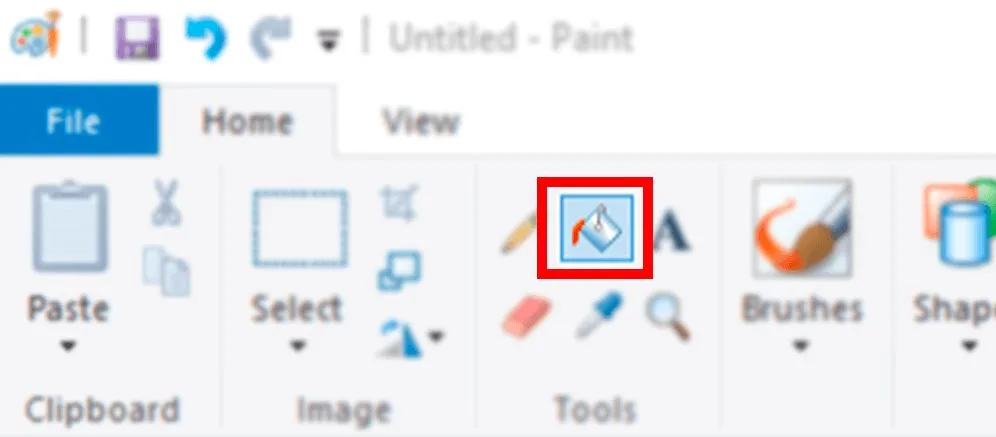
9. Pencil : This tool is used for drawing lines with a variety of colors.

Brushes : This functionality allows you to select the brush form and apply color to the picture.

10. Eraser : We use it to remove mistakes or sections of a drawing.
11. Magnifier : A picture may be zoomed in or out with the use of this tool.

12. Text : Users can type text while using it.

13. Line : This serves to establish a boundary.

14. Curve : We use this to create a curved line.

15. Rectangle : We use this to draw a rectangle.
16. Polygon : A polygon may be drawn with the help of this.

17. Circle : We use this to draw an ellipse.

18. Rounded Rectangle : Using this, you may create a rectangle with rounded corners.
19. Colour Palette : You will be able to choose the colors that you want to create.
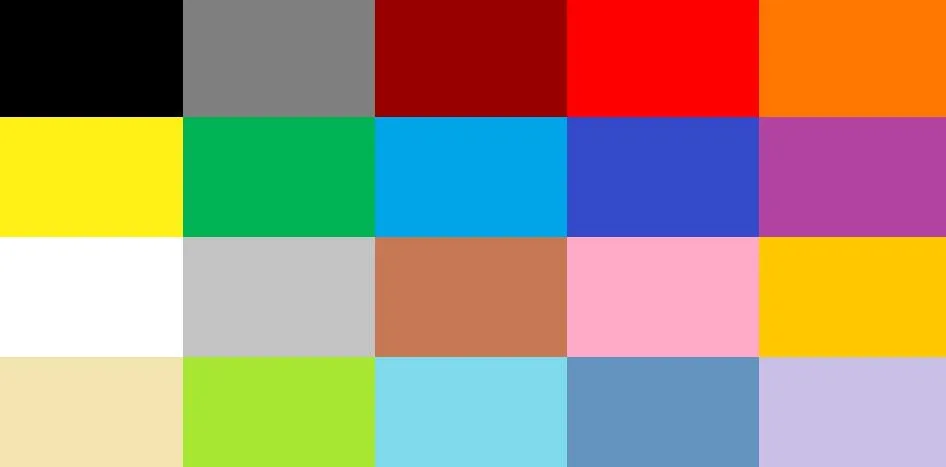
20. Edit Colours : Editing colors is one of its functions.

21. Colour Box : It comes with two colors by default, which are black and white, but you have the option to modify them.

Read More

1. How can I create transparent backgrounds in MS Paint?
Ans: Use the “Select” tool, enable “Transparent Selection,” and copy the image onto a new blank canvas – the white area will act as transparent while pasting.
2. What is the quickest way to fill shapes with custom colors?
Ans: Click the “Color Picker” tool to select your color, then use the “Fill with Color” bucket to instantly apply it inside any shape or area.
3. How can I draw perfect circles and squares in MS Paint?
Ans: Hold the Shift key while using the “Ellipse” or “Rectangle” tool – this keeps your shape perfectly proportional.
4. How do I resize an image without losing quality in MS Paint?
Ans: Go to Home → Resize → Pixels, and make sure “Maintain aspect ratio” is checked before changing size values.
5. Can I rotate or flip parts of an image in MS Paint?
Ans: Yes. Select any part using the “Select” tool, then right-click and choose Rotate or Flip for quick orientation changes.
6. What’s the trick to making smooth curved lines in MS Paint?
Ans: Use the “Curve” tool – click twice to define the curve’s bend, then drag to adjust its smoothness for better flow.
7. How can I zoom precisely on a drawing?
Ans: Use the “Magnifier” tool or press Ctrl + Mouse Scroll to zoom in and out seamlessly while editing details.
8. How can I layer objects in MS Paint without overlap issues?
Ans: Copy elements, paste them in sequence, and use “Transparent Selection” to keep lower layers visible.
9. Is it possible to add text with custom font styles?
Ans: Yes. Select the “Text” tool, then choose any installed font, color, and size from the ribbon before typing your content.
10. How can I create gradient effects in MS Paint?
Ans: Use the “Brush” tool with different opacities or overlay semi-transparent color layers manually for a soft gradient look.

Hi, I’m Narinder Kumar, founder of BlogsBuz.com. I create articles and generate celebrity biographies, providing verified, up-to-date content. As an SEO expert and online tools creator, I also share practical tips on making money online, finance management, blogging, and passive income. My mission is to provide accurate information and keep you away from fake content, ensuring you stay well-informed and make smart decisions online.