
How to Resize Text in MS Paint?
The process of resize text in Microsoft Paint is surprisingly straightforward; however, you must do it while the text is still chosen or selected inside the picture.
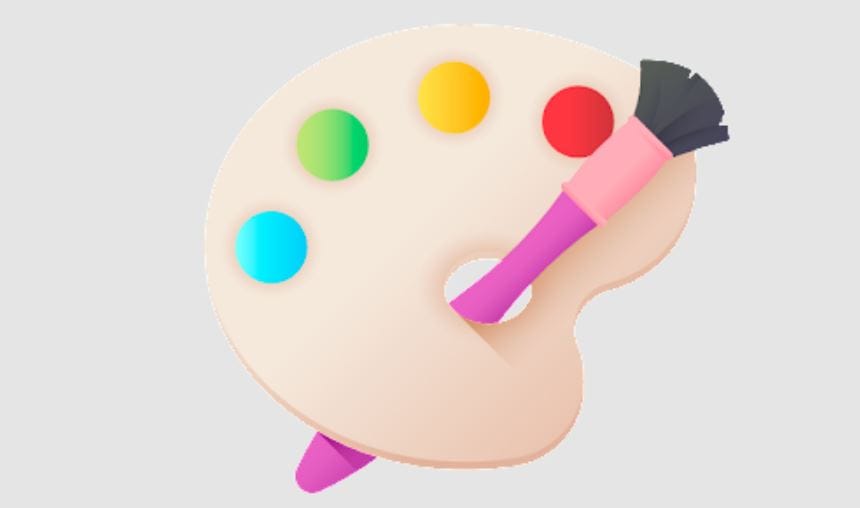
1. All of the text that you supplied in the box should be selected.

2. To change the size of the font on the ribbon, adjust it by selecting the numbered drop-down box.
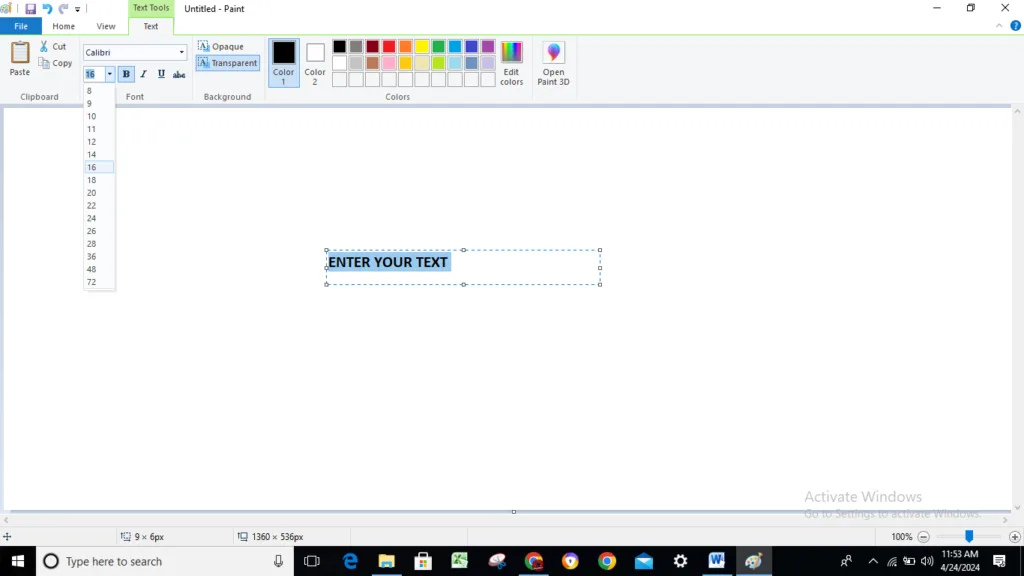
3. In order to get the desired font size, adjust the number.
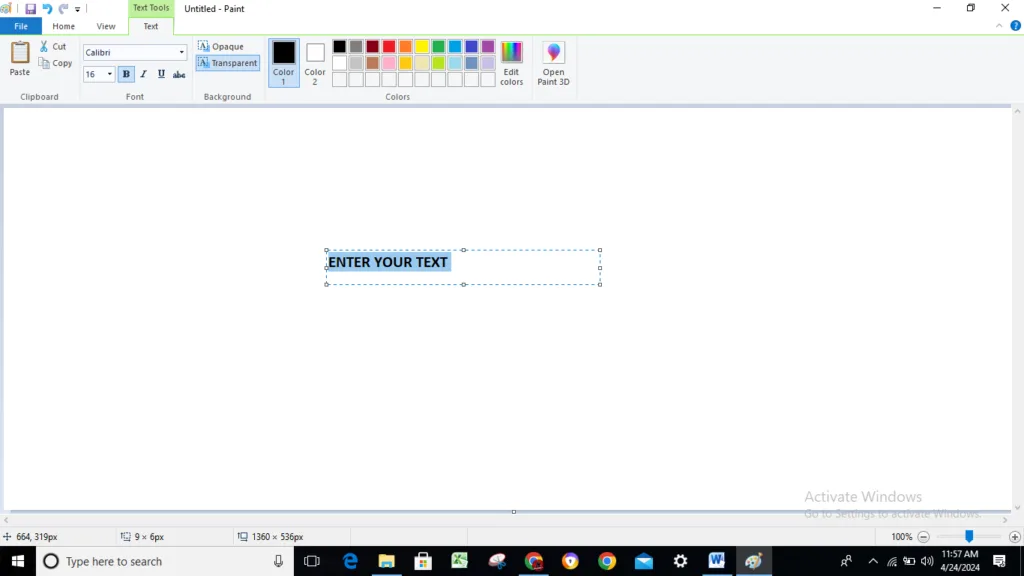
As you increase the size of the text container, you can discover that it cuts off portions of the content. The container may by selecting it, dragging and dropping it, and then resize. Therefore, avoid positioning the text in a manner that renders it uneditable.
Read More


1. What are some hidden features in Microsoft Paint most users don’t know about?
Ans: Most users don’t realize that Microsoft Paint supports transparent backgrounds, custom brush shapes, and zoom shortcuts. You can also paste clipboard images directly from screenshots and edit them instantly.
2. How can I make the background transparent in MS Paint?
Ans: To create a transparent background in MS Paint, select the image, enable “Transparent Selection” under the Select menu, and copy it onto a new white canvas. Save it as a PNG file for best results.
3. Is there a hidden trick to create perfect shapes in MS Paint?
Ans: Yes! Hold down the Shift key while drawing any shape (circle, square, or line) to make it perfectly symmetrical and proportionate.
4. How can I use keyboard shortcuts to speed up my work in MS Paint?
Ans: Use hidden shortcuts like Ctrl + W to resize, Ctrl + E to view image properties, and Ctrl + G to toggle gridlines. These boost productivity and make editing faster.
5. How do I remove the background of an image in MS Paint easily?
Ans: Use the Free-Form Selection tool to carefully outline your object, enable Transparent Selection, and copy-paste it onto a new background or transparent canvas.
6. Can MS Paint open or edit other image formats like PNG or BMP?
Ans: Yes, MS Paint supports PNG, BMP, JPEG, GIF, and TIFF formats. You can open, edit, and convert between them by choosing Save As and selecting the desired format.
7. What are some color blending tricks in MS Paint?
Ans: You can create custom color gradients by overlapping brush strokes of two colors with reduced opacity. The Eraser tool can also act as a color mixer when you right-click to switch colors mid-use.
8. How do I draw straight lines or geometric patterns easily?
Ans: Hold Shift while using the Line Tool to draw perfectly straight lines. Combine shapes and color fills to create geometric art in seconds.
9. Can I use MS Paint for pixel art or game sprites?
Ans: Absolutely! MS Paint’s zoom and grid tools make it ideal for pixel art creation. Set a small canvas (like 32×32), use the Pencil Tool, and zoom in for pixel-perfect detail.
10. How can I rotate or flip text or images accurately in MS Paint?
Ans: Go to the Rotate menu and select custom angles or flip horizontally/vertically. For finer control, use Paint 3D where rotation can be done in any 3D direction.

Hi, I’m Narinder Kumar, founder of BlogsBuz.com. I create articles and generate celebrity biographies, providing verified, up-to-date content. As an SEO expert and online tools creator, I also share practical tips on making money online, finance management, blogging, and passive income. My mission is to provide accurate information and keep you away from fake content, ensuring you stay well-informed and make smart decisions online.