

Tools of Ms Paint
Within Ms Paint, there are a variety of tools. On your own computer, you can use MS Paint to create simple drawings. Some of these categories are listed below:
1. Pencil : A pencil is used for the purpose of drawing lines or drawing free hands using a variety of colors.

2. Eraser : By using the eraser, we are able to remove the areas that we do not want.

3. Brush : By using the many different kinds of brushes that this application provides, we can improve our sketching skills.

4. Text : Because of this, we are able to immediately type the text onto the photo.

5. Airbrush Tool : Thanks to this system, we are able to spray the component with a color of our choice.
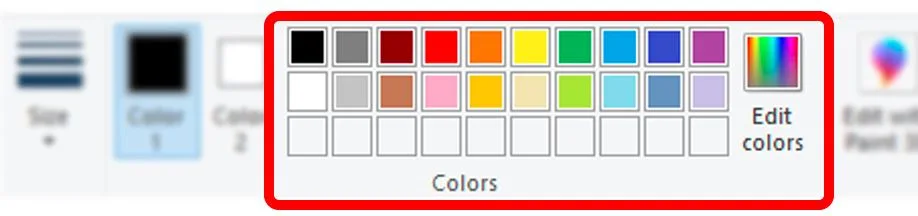
6. Colour Palette: It is because of this that we have access to a wide range of color options.
7. Magnifier : It enables us to zoom in or out of a picture, depending on our needs.

8. Rectangle : This allows us to create rectangles on the image that are the same length and width.

9. Line : Using the line tool, we are able to create a variety of lines, including straight lines, horizontal lines, vertical lines, slanted lines, and more.

10. Curve : As a result, we are able to draw curves.

Read More


1. What is the main difference between the Pencil tool and the Brush tool in MS Paint?
Ans: The Pencil tool creates thin, pixel-level lines for detailed sketching, while the Brush tool paints smoother and thicker strokes for coloring and creative designs.
2. How can I make my drawings look more realistic using the Airbrush tool in MS Paint?
Ans: You can apply soft, layered sprays of color using the Airbrush tool. Adjusting the pressure and color shades helps create realistic shadows and textures.
3. Why is the Colour Palette important while using MS Paint tools?
Ans: The Colour Palette gives you control over shades and tones. It helps in choosing exact colors for drawing, filling shapes, or matching designs perfectly.
4. Can I edit text after adding it with the Text tool in MS Paint?
Ans: You can edit text only before clicking outside the text box. Once you deselect it, the text becomes part of the image and can’t be changed directly.
5. How do I use the Magnifier tool effectively for detailed artwork in MS Paint?
Ans: Zoom in using the Magnifier to focus on small areas. It allows you to refine details like edges or pixel art without blurring or misalignment.
6. What’s the best way to draw perfect rectangles or lines in MS Paint?
Ans: Hold the Shift key while using the Rectangle or Line tool. This keeps your shapes proportional and your lines perfectly straight.
7. How can beginners use the Eraser tool without damaging other parts of the drawing?
Ans: Zoom in before erasing and use a smaller eraser size. This lets you remove specific details cleanly without affecting nearby colors or lines.
8. Can I mix different tools like Brush and Curve in one MS Paint drawing?
Ans: Yes! Combining tools gives creative results – for example, use the Curve tool for outlines and the Brush tool to fill them with color or texture.
9. How can I add highlights or soft effects using MS Paint tools?
Ans: Use light colors with the Airbrush or Brush tool and apply gentle strokes. It adds soft lighting or shadow effects that make the image more dynamic.
10. Is it possible to create digital art in MS Paint using only basic tools?
Ans: Absolutely. Many artists create impressive digital art using simple tools like Pencil, Brush, and Colour Palette – creativity matters more than complexity.

Hi, I’m Narinder Kumar, founder of BlogsBuz.com. I create articles and generate celebrity biographies, providing verified, up-to-date content. As an SEO expert and online tools creator, I also share practical tips on making money online, finance management, blogging, and passive income. My mission is to provide accurate information and keep you away from fake content, ensuring you stay well-informed and make smart decisions online.