

How to add text, change colours, & rotate – step-by-step (MS Paint)
Even though Microsoft Paint has been around since the 1990s, it hasn’t changed much over the years. It works well on Windows and can handle simple image editing tasks that most people need. In this guide, you’ll learn how to add text, resize it, change text color, and rotate text in Microsoft Paint. For basic image editing, Paint is more than enough.
However, if you want to do more advanced editing, there are other programs that are better suited for that. Some of them, like GIMP or Paint.net, are free, while others, like Photoshop or PaintShop Pro, are paid tools. But since this guide is focused on Microsoft Paint, we’ll keep our attention on that.
1) Open Paint and your image
- Open Paint (Start → type Paint → press Enter).
- Click File → Open to load an image, or start with a blank canvas (File → New).
2) Select the Text tool
- Click the A (Text) icon in the toolbar (usually under the “Tools” section).
- Your cursor becomes a text cursor and a small Text toolbar appears at the top.
3) Create a text box and type
- Click and drag on the canvas where you want the text – this makes a text box.
- Click inside the box and type your text.
4) Choose font, size and style (while box is active)
- Use the top text toolbar to pick Font, Size, Bold, Italic, and Underline.
- Change these before you click outside the text box – otherwise you’ll lose the ability to edit.
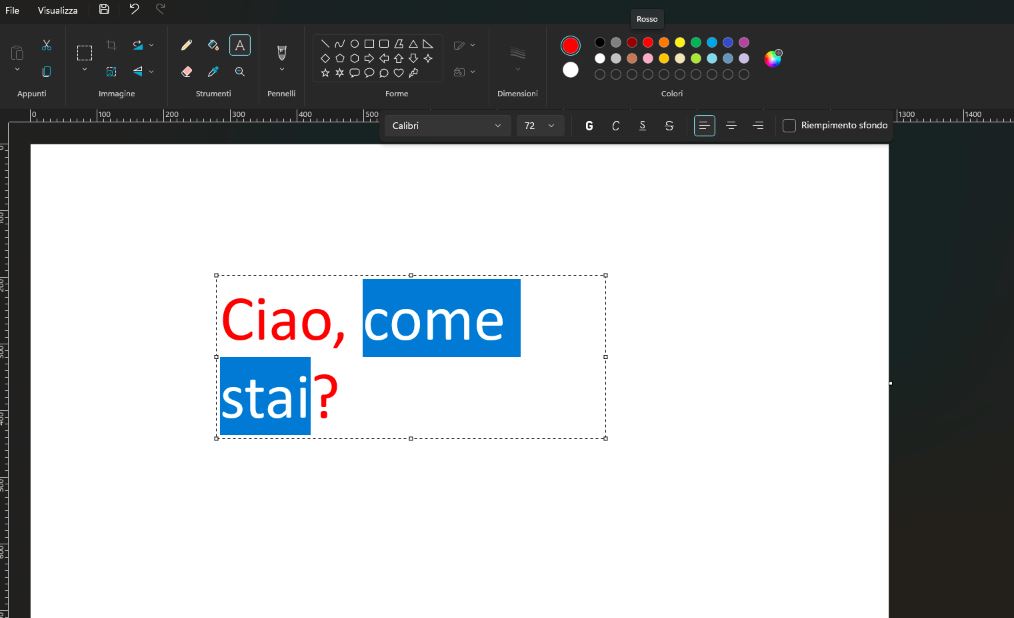
5) Change text color
- On the top-right of the toolbar you’ll see Color 1 and Color 2 and a palette.
- Color 1 = primary color (this sets the text color).
- Color 2 = secondary color (used for right-click operations and shape outlines).
- While the text box is still active, click the color you want for Color 1 – the text will use that color immediately.
Text background: in the text toolbar you can choose Opaque (fills background with Color 2) or Transparent (no background).
7) Rotate the text
If text is still editable: rotate options are not available until text is committed.
After text is committed (pixels):
- Use Select → select the text area.
- Click Rotate (in the Image group) → choose Rotate right 90° / left 90° / Flip horizontal / Flip vertical.
- For arbitrary angles (e.g., 15°) use Paint 3D or another editor – classic Paint only rotates in 90° steps.
8) Change color or edit text after committing
- If you want to change text color after it’s committed, the clean way is to erase the old text and re-add it with the new color (or retype inside a new text box).
- You can also use the Fill (Bucket) or Brush tools to manually recolor pixels, but that’s tedious.
9) Undo & save
- Press Ctrl + Z to undo mistakes.
- Save often: File → Save or Ctrl + S.
Quick Shortcuts & Reminders
Keyboard shortcuts & tips for editing text in Microsoft Paint and similar editors.
-
Text toolClick A in the Paint toolbar to activate the Text tool.
-
UndoCtrl + Z
-
SaveCtrl + S
-
Keep changes editableFinish text formatting before clicking outside the text box — Paint converts text to pixels after committing.
Read More
1. How can I add text to an image in Microsoft Paint?
Ans: To add text in Microsoft Paint, open your image and click the “A” (Text Tool) from the toolbar. Then drag a text box on the image and start typing. You can change the font, color, and size from the top menu before clicking outside the box. Once you click away, the text becomes part of the image.
2. How do I change the text color in MS Paint?
Ans: To change text color, select the Text Tool (A), then click on the Color 1 box in the toolbar and choose your desired color. The selected color will apply to the text you type. You can also adjust background color using Color 2 if the text box background is enabled.
3. Can I edit text after clicking outside the text box in Paint?
Ans: Unfortunately, no. Once you click outside the text box, the text merges with the image and becomes uneditable. To keep text editable, finish all formatting (font, size, color) before clicking away. If you need editable text, use Paint 3D or GIMP instead.
4. How do I resize or move text in MS Paint?
Ans: While typing, you can resize the text box by dragging its corners and move it by clicking and dragging inside the box. Once you finalize the text (by clicking outside), you cannot move it again – so position it carefully before finishing.
5. How can I rotate text in Microsoft Paint?
Ans: Paint doesn’t allow direct text rotation. To rotate, you can type the text separately, take a screenshot, then paste and use the Rotate option (Home → Rotate). Alternatively, use Paint 3D, which allows text rotation in 3D and 2D.
6. What is the shortcut key for Undo and Save in MS Paint?
Ans: The Undo shortcut is Ctrl + Z, and the Save shortcut is Ctrl + S. Use these frequently while editing to revert mistakes and preserve your work. These shortcuts are the same across all Windows versions.
7. How can I change the background color behind text in Paint?
Ans: When using the Text Tool, select Background → Opaque from the toolbar. Then choose a color using Color 2. This will fill the text box background with the selected color instead of leaving it transparent.
8. Can I use MS Paint for professional photo editing?
Ans: MS Paint is great for simple tasks like adding text, resizing, or drawing. However, it lacks advanced editing features like layers or blending. For professional work, consider Paint.net, GIMP, or Photoshop, which offer more tools and flexibility.
9. How do I resize an image in Microsoft Paint without losing quality?
Ans: To resize an image, go to the Home tab → Resize → Pixels or Percentage. Make sure the Maintain aspect ratio box is checked. Reducing size too much can cause pixelation, so adjust gradually for better results.
10. What is the difference between MS Paint and Paint 3D?
Ans: MS Paint focuses on 2D drawing and simple edits, while Paint 3D offers 3D modeling, text rotation, stickers, and layers. Paint 3D is more advanced and better for creative projects, while MS Paint is perfect for quick edits and annotations.

Hi, I’m Narinder Kumar, founder of BlogsBuz.com. I create articles and generate celebrity biographies, providing verified, up-to-date content. As an SEO expert and online tools creator, I also share practical tips on making money online, finance management, blogging, and passive income. My mission is to provide accurate information and keep you away from fake content, ensuring you stay well-informed and make smart decisions online.